
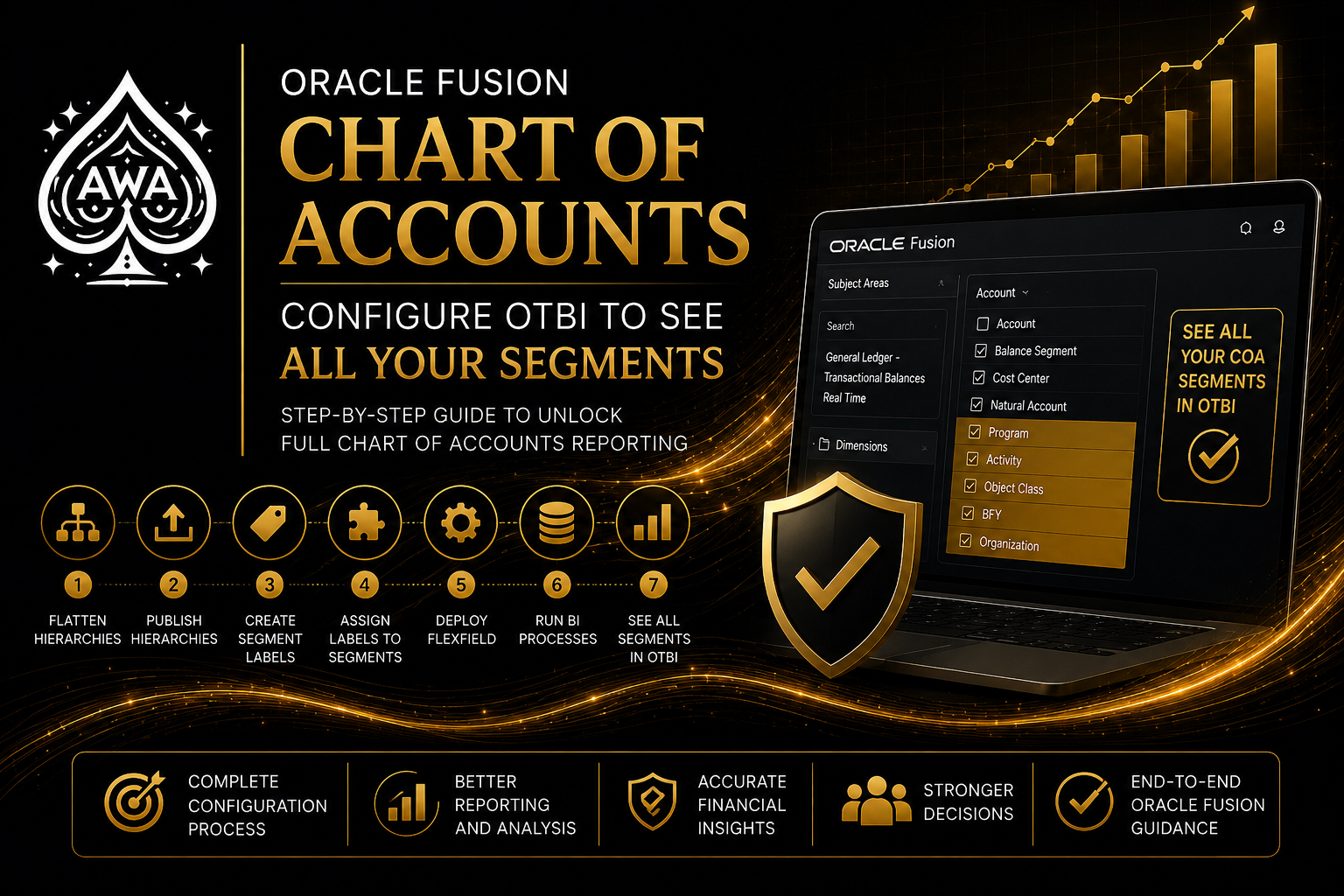
One of the most common frustrations when building Oracle Fusion OTBI reports is discovering that only three Chart of Accounts segments appear in the subject area.
Your Chart of Accounts may contain six, seven, or even more segments, yet when you open an OTBI subject area such as General Ledger – Transactional Balances Real Time, you only see the Balancing Segment, Natural Account, and Cost Center available for reporting.
At first glance, it can appear that Oracle Fusion is missing functionality or that the Chart of Accounts was configured incorrectly. In reality, Oracle Fusion requires additional configuration before non-qualified accounting segments become available within OTBI.
This article walks through the process required to expose additional Chart of Accounts segments for reporting and analysis.
Understanding The Limitation
Oracle Fusion automatically exposes three qualified accounting segments within OTBI:
- Primary Balancing Segment
- Natural Account Segment
- Cost Center Segment
Any additional segments in the Chart of Accounts require additional BI configuration before they become available within OTBI subject areas.
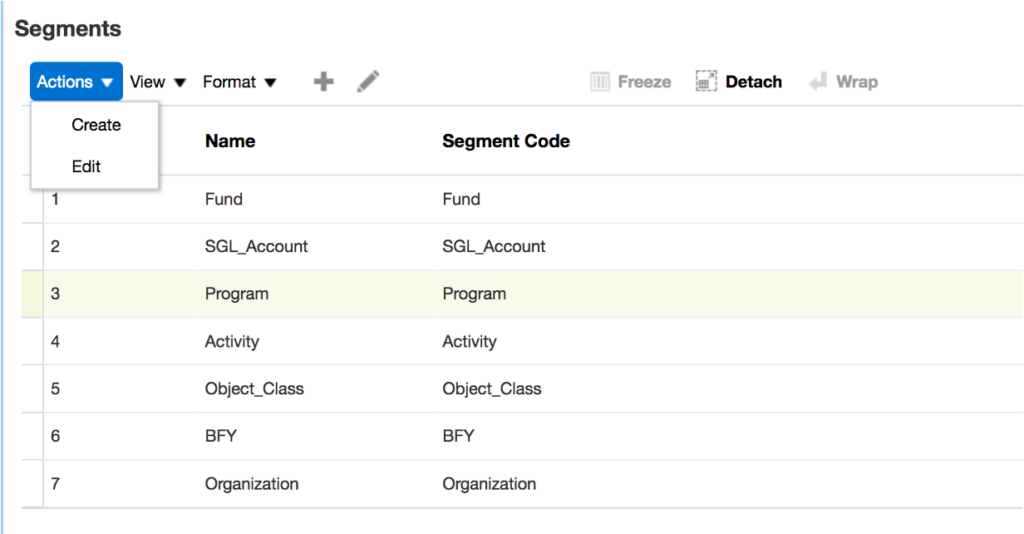
For example, the Chart of Accounts below contains seven segments:
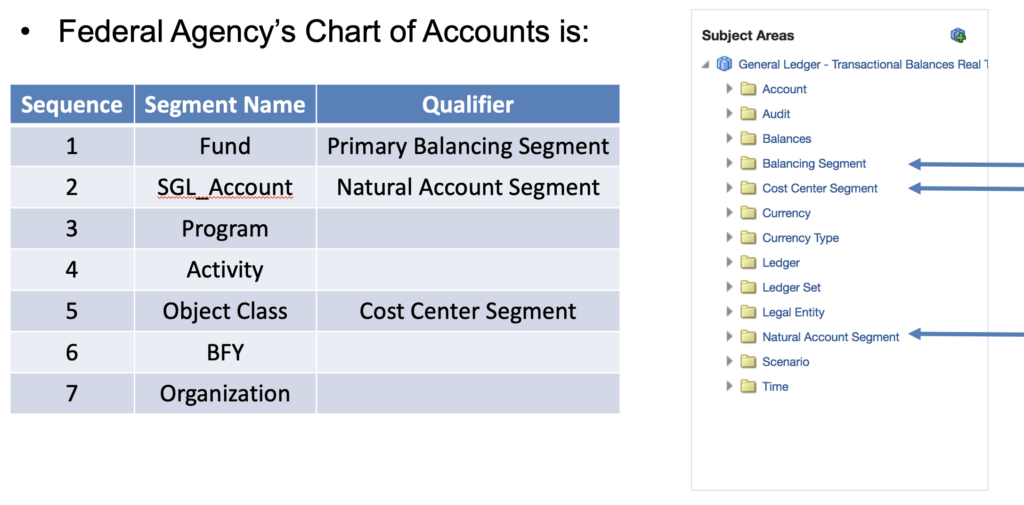
Although all seven segments are available for transaction entry and accounting, only three will initially appear within OTBI.
This often leads project teams to believe reporting is broken when the issue is actually configuration related.
Step 1 – Flatten Your Account Hierarchies
Before Oracle Fusion can expose segment values to OTBI, the hierarchy structures associated with the accounting segments must be flattened.
Navigate to:
Setup and Maintenance → Manage Trees and Tree Versions
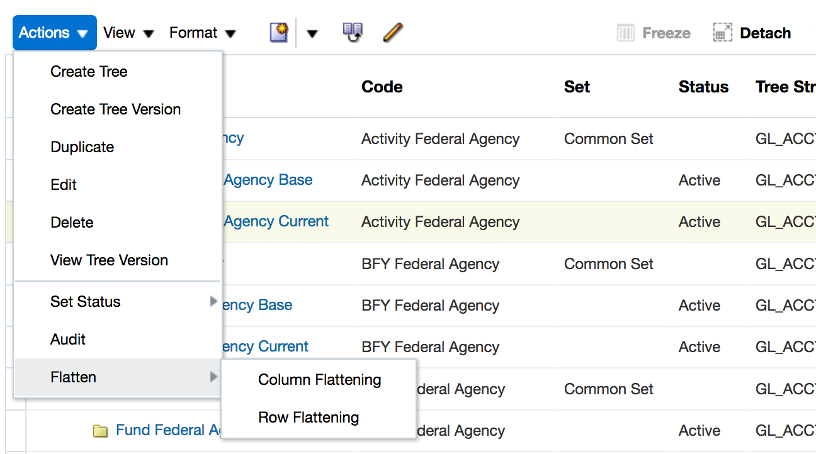
Select the hierarchy associated with the accounting segment and choose:
Actions → Flatten → Column Flattening
When prompted, select:
Force Flattening
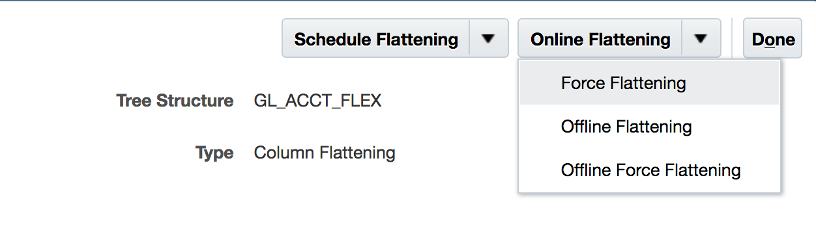
This process denormalizes the hierarchy structure and creates the relationships required for efficient OTBI reporting. Anytime hierarchy structures are modified, the flattening process should be executed again.
Step 2 – Publish Account Hierarchies
Once hierarchy flattening is complete, the hierarchies must be published to the balances cube.
Navigate to:
Setup and Maintenance → Publish Account Hierarchies
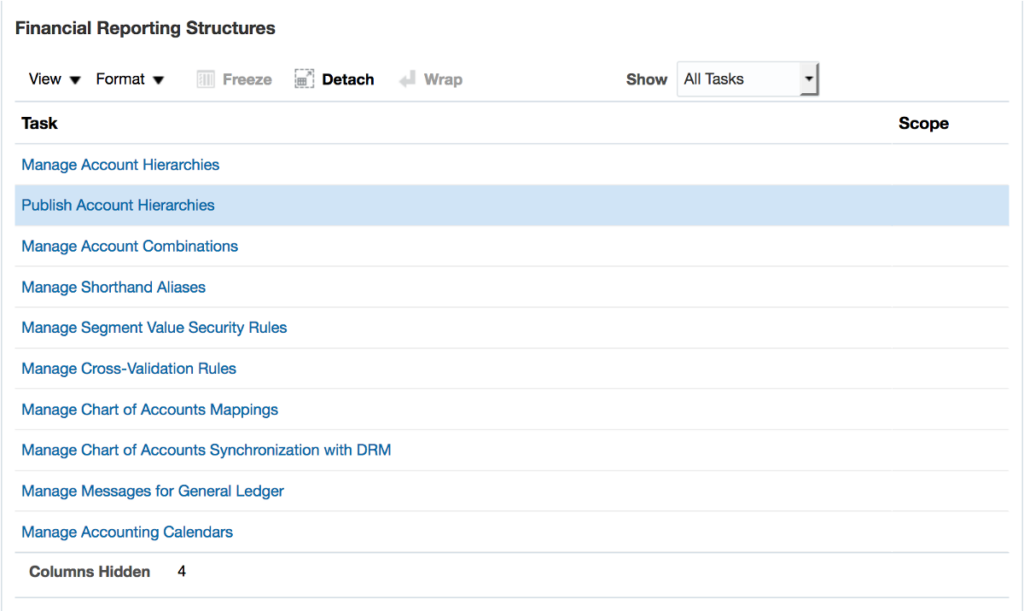
Select the hierarchies that should be included in reporting and publish them.
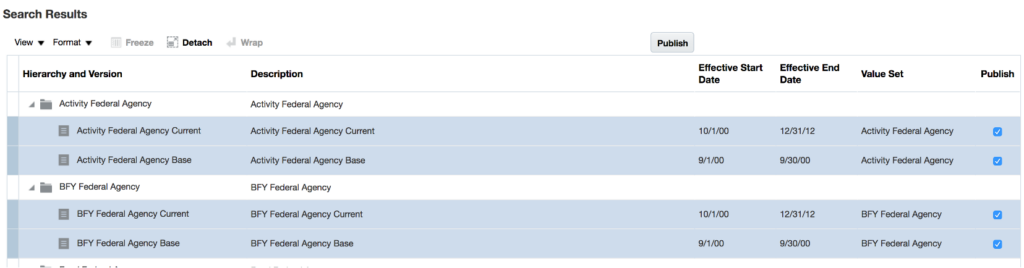
This step updates the Essbase balances cube used by Oracle Fusion reporting. Without this step, hierarchy information may not be available to reporting tools.
Step 3 – Create Segment Labels
This is the step most implementations miss.
Oracle Fusion requires non-qualified accounting segments to be mapped to predefined BI Object Names.
Navigate to:
Setup and Maintenance → Manage Key Flexfields
Search for:
GL#
Then select:
Actions → Manage Segment Labels
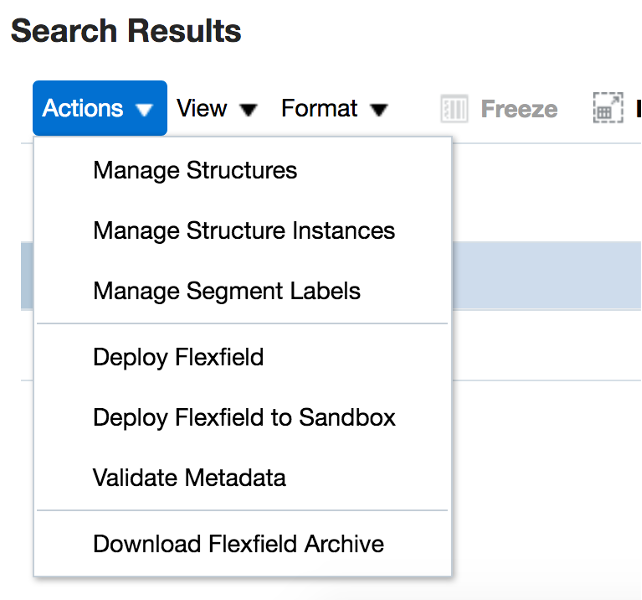
Create labels for the reporting segments and associate them with BI Object Names.
For General Ledger, Oracle provides:
- Dim – GL Segment1
- Dim – GL Segment2
- Dim – GL Segment3
- Dim – GL Segment4
- Dim – GL Segment5
- Dim – GL Segment6
- Dim – GL Segment7
- Dim – GL Segment8
- Dim – GL Segment9
- Dim – GL Segment10

These mappings determine how Oracle Fusion exposes the accounting segments to OTBI.
Step 4 – Assign Labels To The Chart Of Accounts
Creating labels alone is not sufficient – The labels must also be assigned to the appropriate Chart of Accounts segments.
Navigate to:
Manage Chart of Accounts Structures
Select the Chart of Accounts structure and edit each non-qualified segment.
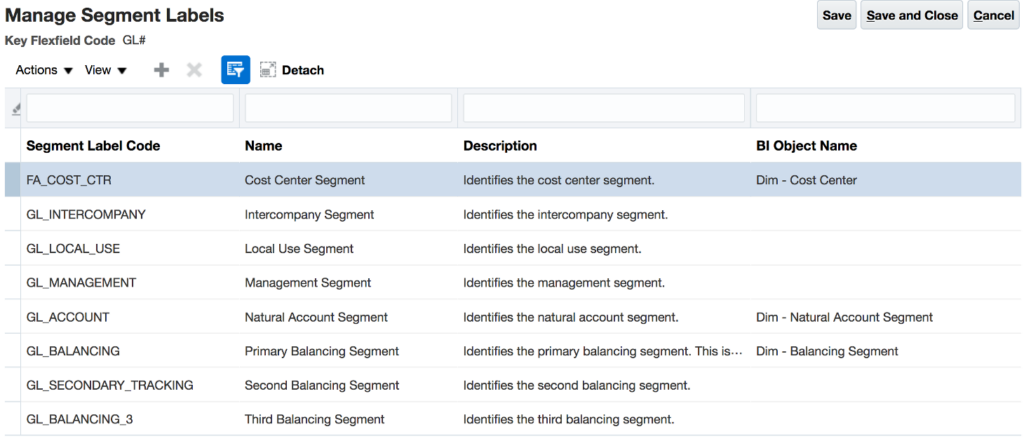
Edit the segment to assign the segment label to the segment definition.
After saving, verify that the label appears on the segment definition.
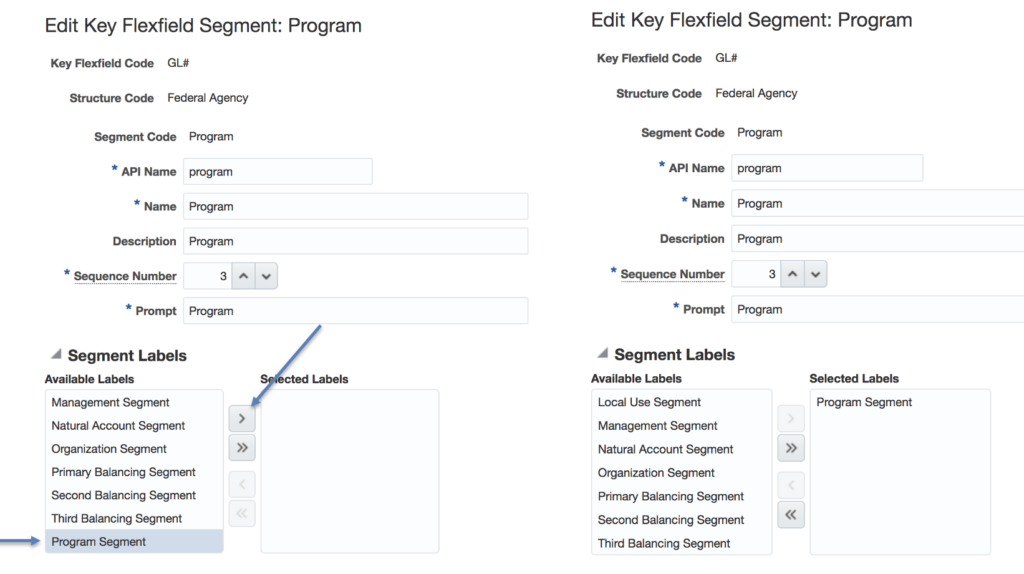
This step creates the relationship between the accounting segment and the BI metadata.
Step 5 – Verify BI Enablement
The accounting segment must be configured as BI-enabled and associated with the correct hierarchy structure.
Navigate to:
Manage Structure Instances
Edit the structure instance and verify the segment configuration.
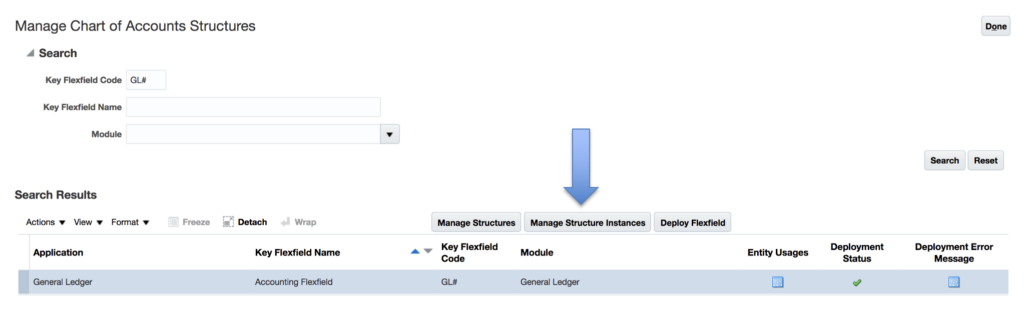
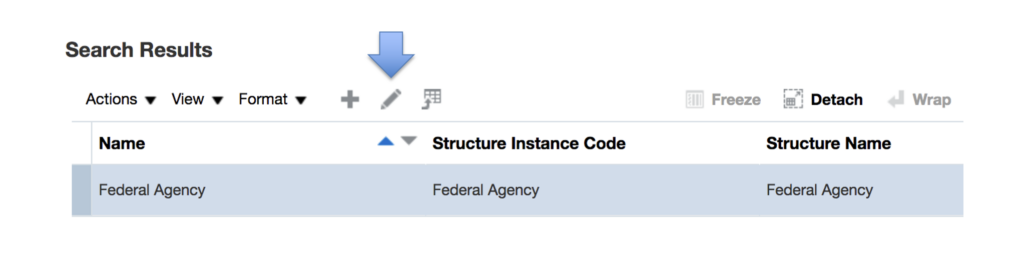
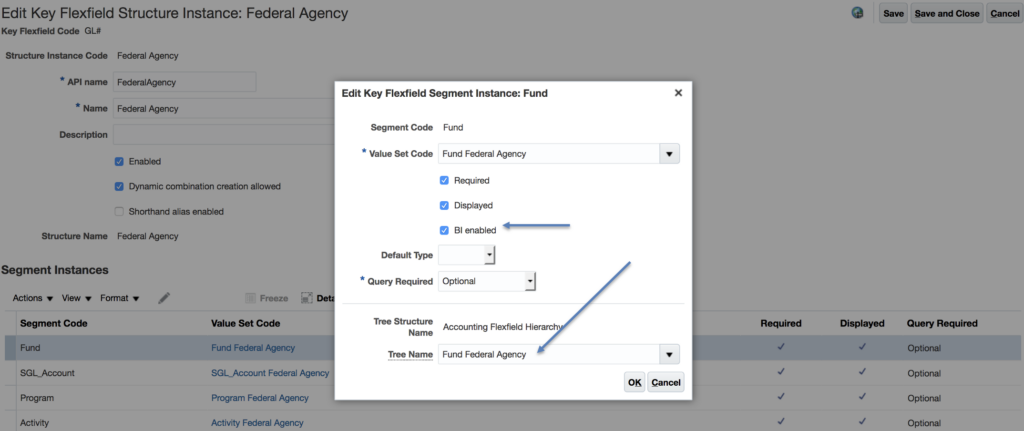
This configuration determines whether OTBI can expose the segment within reporting subject areas.
Step 6 – Deploy The Flexfield
Once configuration changes have been completed, the flexfield must be redeployed.
Navigate to:
Manage Key Flexfields
Select:
Deploy Flexfield
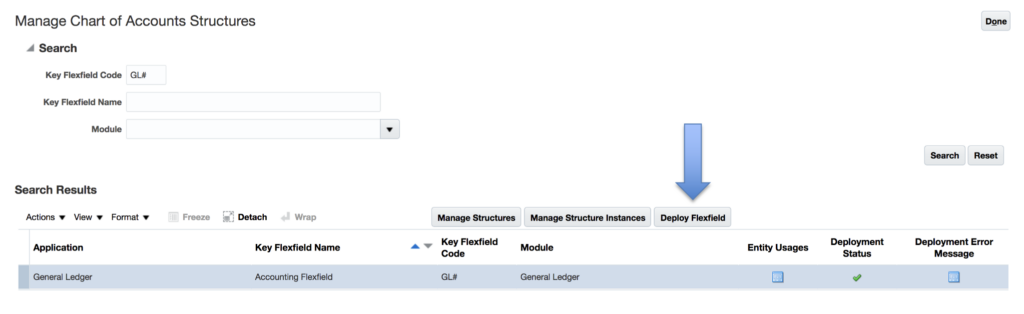
Deployment updates the metadata definitions used throughout Oracle Fusion.
Without deployment, OTBI will not recognize the configuration changes.
Step 7 – Run Required Scheduled Processes
The final step is executing the required BI extension processes.
Run:
Create Rules XML File for BI Extender Automation
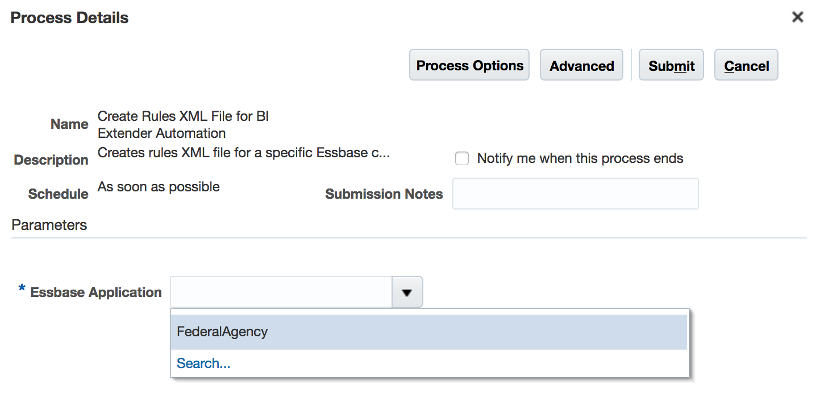
After completion, run:
Import Oracle Fusion Data Extensions for Transactional Business Intelligence
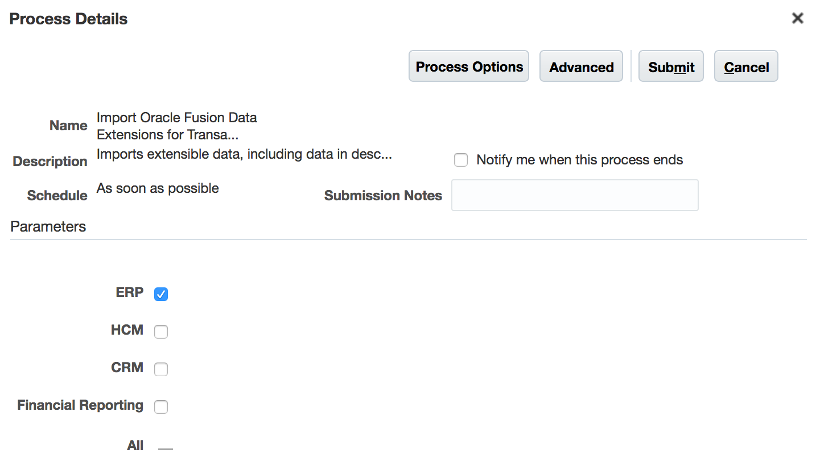
Depending on environment size and data volume, the import process may take considerable time to complete.
Verifying Success
Once configuration is complete, return to the OTBI subject area.
You should now see the newly configured accounting segments alongside the standard Balancing Segment, Cost Center, and Natural Account dimensions.
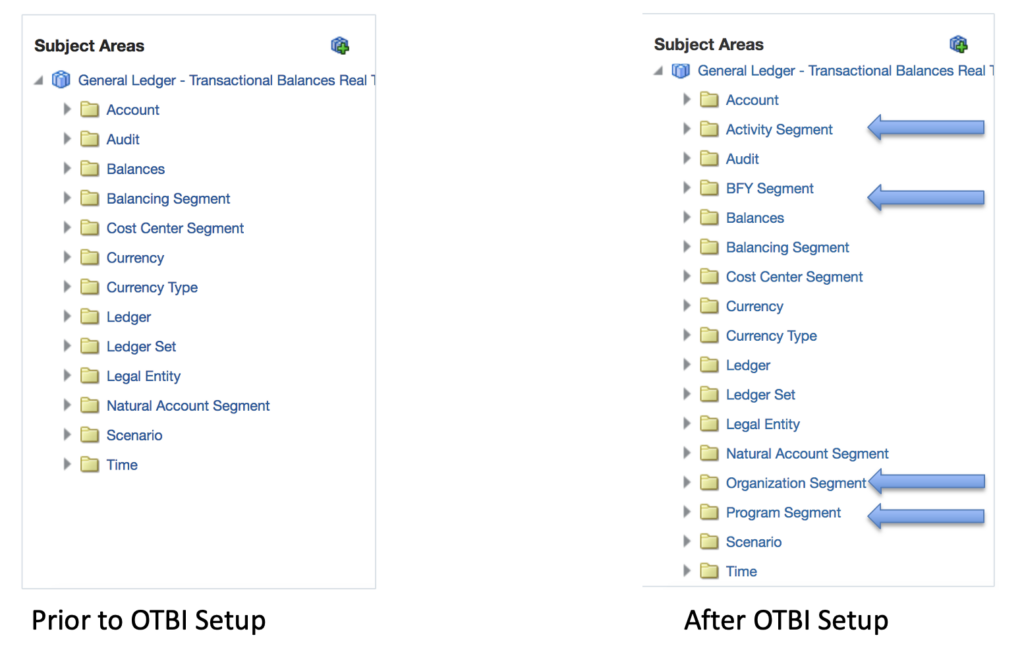
The difference can be dramatic. What was previously a limited reporting model becomes a fully dimensional Chart of Accounts reporting structure.
Final Thoughts
Many organizations assume OTBI automatically exposes every Chart of Accounts segment. In reality, Oracle Fusion requires additional metadata configuration before non-qualified segments become available.
Fortunately, the process is straightforward once you understand the required steps:
- Flatten Hierarchies
- Publish Hierarchies
- Create Segment Labels
- Assign Segment Labels
- Verify BI Enablement
- Deploy Flexfields
- Run BI Extension Processes
When performed correctly, all required Chart of Accounts segments become available within OTBI, enabling more powerful reporting, analytics, and financial insight.
Next Article In This Series
Why Your Oracle Fusion Reports Don’t Match The General Ledger (And What To Do About It)
Many reporting issues are not reporting issues at all. Learn how timing, security, ledgers, business units, and accounting configuration can cause reports and balances to appear inconsistent.